
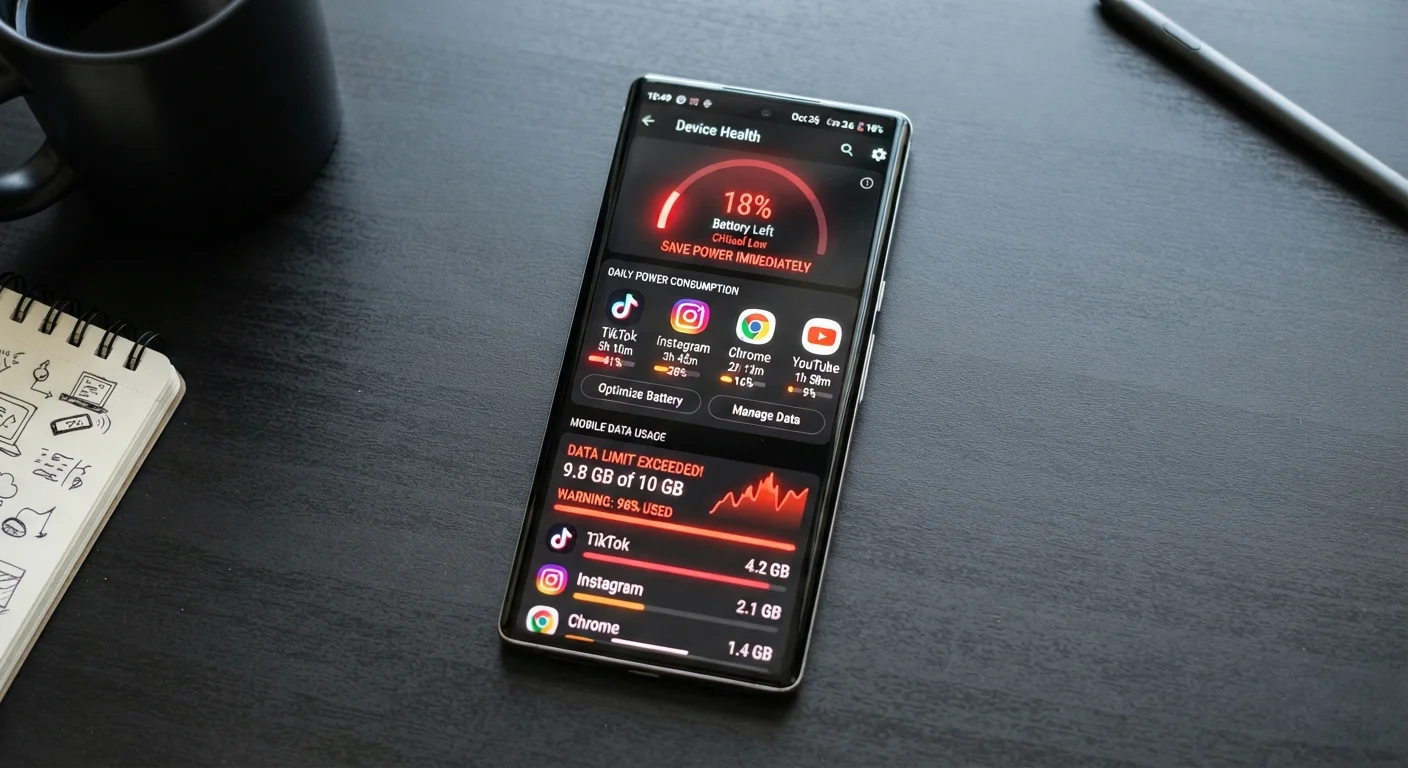
Why Background App Activity Goes Unnoticed
Your phone's screen being off doesn't mean your apps are sleeping. Many apps are designed to keep working in the background — refreshing feeds, checking for messages, syncing files, and logging your location — even when you haven't touched them in hours. This is often useful, but it comes at a cost: battery life and cellular data.
The problem is that these costs are invisible in the moment. You won't feel your data ticking upward. You just notice your phone needs charging again by noon, or your carrier texts you that you've hit 75% of your monthly data limit two weeks early. By then, identifying the culprit takes a deliberate investigation.
This checklist gives you a structured way to spot the warning signs, dig into your phone's built-in diagnostics, and take targeted action — without disabling features you actually depend on. For broader context on keeping your device in good shape, the practical maintenance playbook covers complementary habits worth building alongside this audit.
Don't Assume All Background Activity Is Bad
Some background activity is intentional and useful — email syncing, navigation updates, and health data collection all run in the background by design. The goal of this audit is to identify apps whose background consumption is disproportionate to the value they provide, not to eliminate all background processes entirely.
Resetting Data Usage Stats Affects Your Baseline
Both Android and iOS allow you to reset the cellular data usage counter. If you do this mid-cycle, you'll lose your comparison baseline. Avoid resetting until you've captured the data you need for your audit, and note the date when any reset occurs.
How to Read the Signs and Run the Audit
The most reliable signals are a battery that drains faster than your usage warrants and a data bill that doesn't match your habits. A phone that's warm to the touch while sitting idle is another strong indicator — sustained background processing generates heat. These are your cues to open the diagnostics tools your phone already has.
Both Android and iOS give you per-app breakdowns of battery and data consumption. The key distinction to look for is background usage — consumption that occurs while an app is not on screen. An app that uses 20% of your battery while you're actively streaming video is behaving normally. An app that uses 15% while you were asleep is not.
Warning Signs to Watch For
Investigating Battery Usage
Investigating Data Usage
Taking Action on Offending Apps
After restricting background refresh or data access, give it a full 24–48 hours before re-checking your stats. Changes don't always show up immediately, and you want a fair comparison window. If a specific app's behavior still seems out of proportion after you've restricted its background access, the differences between native apps and mobile websites may help you decide whether switching to the browser version is a practical alternative.
Abnormal Data Spikes May Signal More Than Waste
In rare cases, unusually high background data usage from an unfamiliar app can be a sign of malicious or poorly coded software exfiltrating data. If you see a newly installed app consuming hundreds of megabytes of background data with no clear explanation, consider removing it and reviewing the permissions you granted. See our guide to app permissions for context on what access different apps typically request.
It's also worth noting that battery hardware degrades over time independently of app behavior. If you've run this audit and nothing stands out, the battery aging article explains how lithium-ion cells lose capacity and what that looks like day-to-day. And if you're curious about what happens to the data those background-running apps have collected after you remove them, what happens to your data when you delete an app covers the full picture.
iOS Battery Settings (built-in)
Shows a breakdown of battery usage by app for the past 24 hours and 7 days, including background vs. foreground split.
Android Battery & Data Usage Settings (built-in)
Provides per-app battery consumption detail and lets you restrict background activity individually.
Carrier Data Dashboard
Used to verify total cellular data consumption and cross-check against your phone's built-in data tracking.
Android Developer Options (Background Process Limit)
Allows technically inclined Android users to cap how many background processes can run simultaneously.