
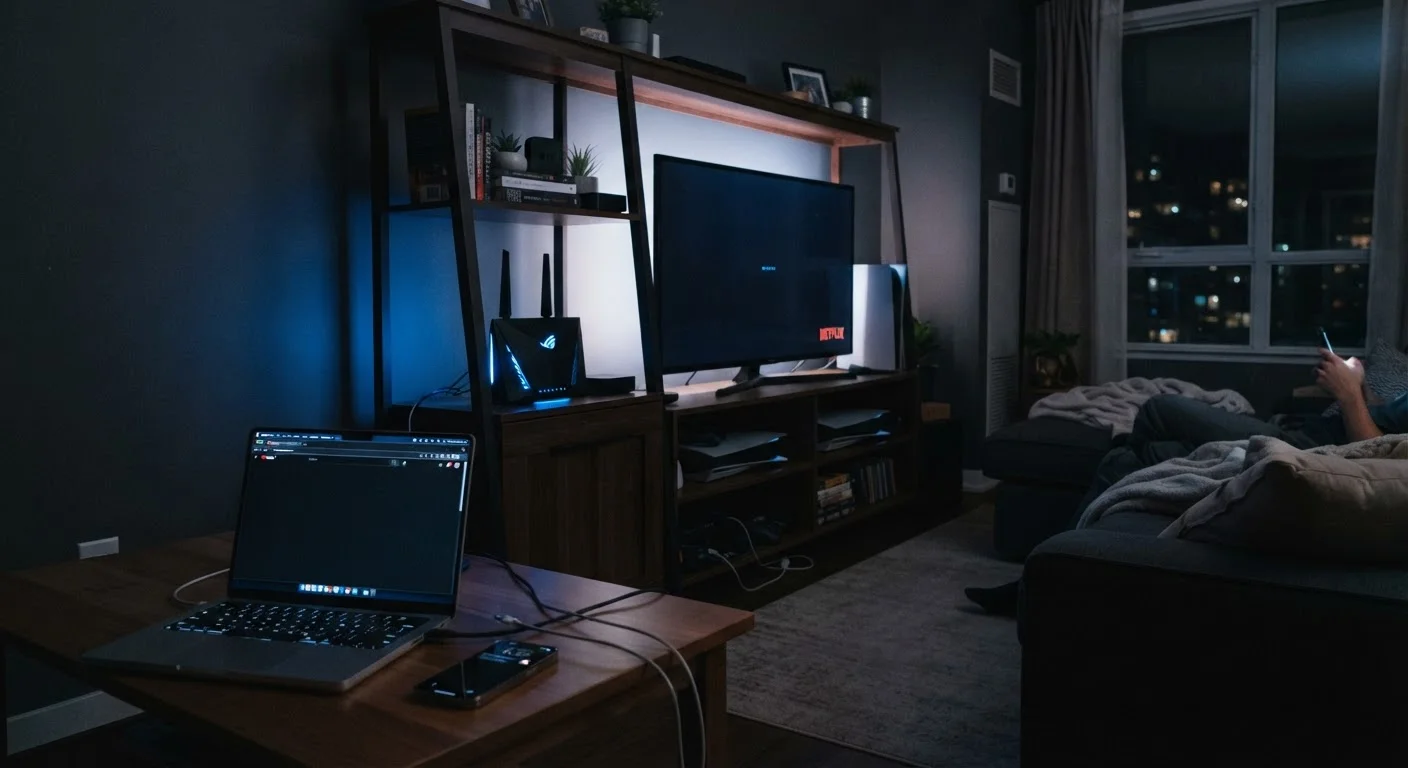
The Real Reason Evenings Hit Different
If your Wi-Fi feels noticeably slower after 7 or 8 PM, you're not imagining it — and your router probably isn't broken. The most significant factor is something called ISP-level congestion. Your Internet Service Provider doesn't deliver a dedicated pipe to each household; instead, your neighborhood shares a pool of bandwidth from a central node. When everyone gets home from work and fires up Netflix, YouTube, or a gaming console at the same time, that shared pool gets stretched thin.
This is especially pronounced on cable-based internet infrastructure, where the local network segment is literally shared among dozens or hundreds of nearby subscribers. Fiber connections are generally less susceptible, though congestion can still occur further upstream in the network.
ISP Congestion vs. Throttling: Know the Difference
Throttling is when an ISP intentionally limits your speeds — often for specific types of traffic like video streaming — rather than as a result of network demand. Congestion is unintentional and affects all traffic types equally during peak hours. If your speeds are consistently low only for video but not for other activities, that's worth investigating separately with your provider.
Understanding when to lean on mobile data versus home Wi-Fi during slowdowns is worth considering. See Wi-Fi vs. Mobile Data: When Each One Is the Smarter Choice for a practical breakdown of the tradeoffs.
What's Happening Inside Your Home Network
While ISP congestion is often the dominant cause, your home network adds its own layers of complexity after dark. Several things tend to converge in the evening hours:
- More devices online simultaneously. Phones, tablets, smart TVs, laptops, and gaming consoles all compete for your router's attention. Routers manage these connections through a queue, and that queue gets longer under heavy load.
- Background updates start running. Operating systems like Windows and macOS, along with major apps, are often configured to download updates automatically during evenings when they assume devices are idle. Signs an App Is Draining Your Battery or Burning Through Data in the Background covers how to spot and investigate this behavior on your devices.
- Wireless interference from neighboring routers. The 2.4GHz Wi-Fi band has only a handful of non-overlapping channels. In a dense apartment building or suburb, many routers broadcasting on the same channel create interference that slows wireless throughput — and this compounds when more devices are active at night.
~8–9 PM
Peak household internet usage window in the US
Internet traffic analysis from major network infrastructure providers consistently identifies the 8–9 PM window as the highest-congestion period for residential broadband in the United States.
3
Non-overlapping channels on the 2.4GHz band
The 2.4GHz Wi-Fi band has only three truly non-overlapping channels (1, 6, and 11), which means routers in dense areas frequently interfere with each other, particularly during high-usage evening hours.
How to Diagnose the Source of Your Slowdown
Before assuming your ISP is throttling you or that you need new hardware, run a structured diagnosis:
- Run a wired speed test. Plug a laptop directly into your modem (bypassing the router entirely) using an Ethernet cable and use a speed test service. If speeds are low here, the issue is upstream with your ISP — your home equipment isn't the culprit.
- Test your router's wireless performance. Run the same speed test over Wi-Fi. A large gap between wired and wireless results points to a home network issue — interference, router placement, or device overload.
- Check what's running on your devices. Look at scheduled update windows in your OS settings and check whether any cloud backup services (like iCloud or Google Photos) are syncing large files automatically in the evenings.
- Review your router's channel settings. Many routers default to automatic channel selection, which isn't always optimal. Understanding what your router's specs and settings actually mean — including the difference between 2.4GHz and 5GHz bands — is explained in detail in What the Numbers on Your Router Actually Mean.
Schedule Large Downloads for Off-Peak Hours
Most operating systems allow you to set a window for automatic updates — typically in the middle of the night when network demand is lowest. On Windows, look under Windows Update > Advanced Options > Active Hours. On macOS, this is managed under System Settings > General > Software Update. Setting these to run between 2–5 AM can noticeably free up evening bandwidth for streaming and browsing.
When to Contact Your ISP — and What to Say
If wired speed tests consistently show speeds significantly below what your plan promises — especially during evening hours — that's grounds for a conversation with your ISP. Document your results: note the time, your tested speeds, and how they compare to your advertised plan. ISPs are required to disclose typical speed ranges and can investigate local infrastructure issues.
Ask specifically whether your area has known congestion issues, whether a node upgrade is planned, or whether a different tier of service offers a more dedicated connection. Some providers offer business-grade plans with less contention — though that comes with a cost trade-off to weigh carefully.
What you cannot easily change is the fundamental architecture of shared cable infrastructure. If repeated, documented evening slowdowns don't improve after working with your ISP, comparing available providers in your area is a reasonable next step — though availability varies significantly by location.