
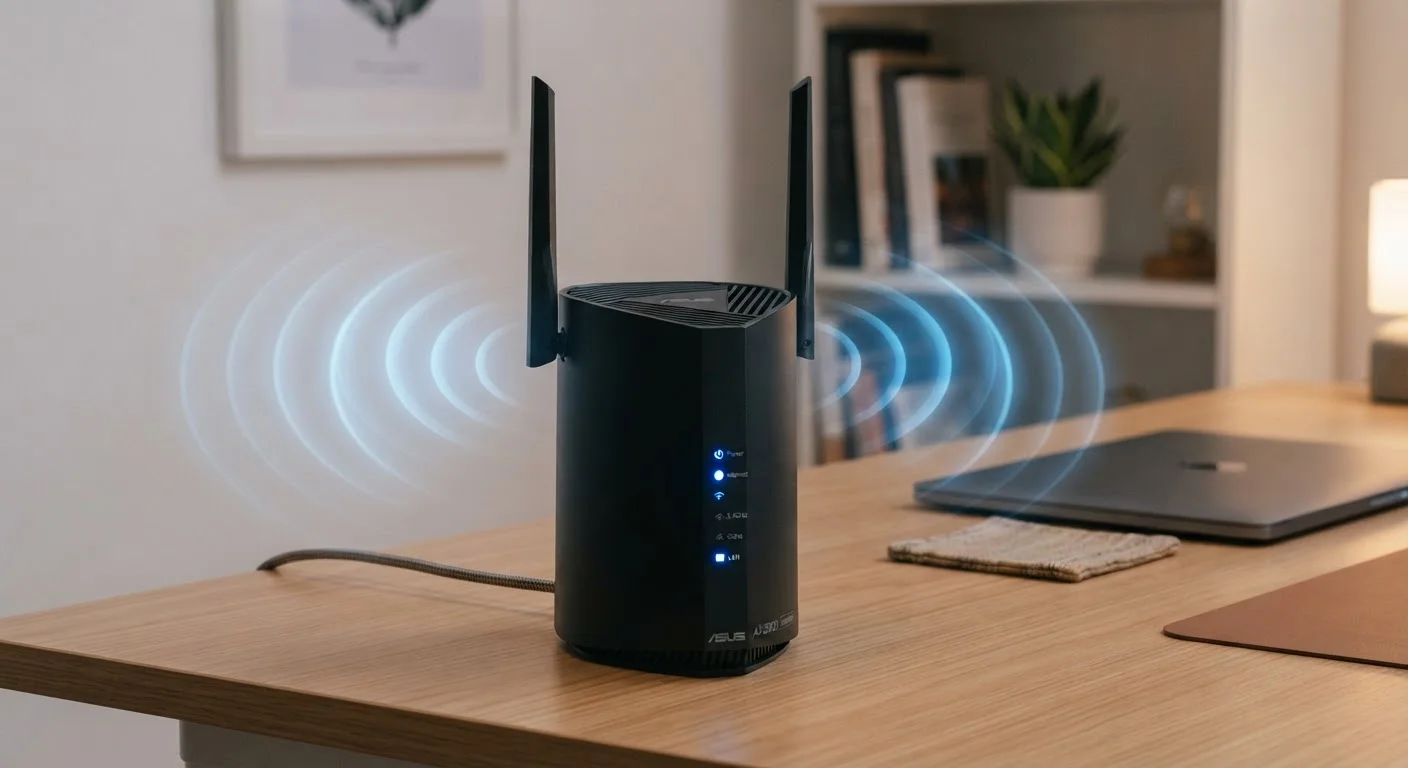
The Wi-Fi Generation Code: What AC, AX, and BE Tell You
The letters on your router's label aren't random — they correspond to specific wireless standards set by the IEEE (Institute of Electrical and Electronics Engineers). Here's the practical translation:
- N / Wi-Fi 4 (802.11n): Older standard, still found in basic devices. Adequate for light browsing.
- AC / Wi-Fi 5 (802.11ac): Mainstream standard in routers from the 2010s onward. Solid for most households today.
- AX / Wi-Fi 6 and Wi-Fi 6E (802.11ax): Current mainstream standard. Better at handling many devices at once and more efficient in congested environments.
- BE / Wi-Fi 7 (802.11be): Emerging standard as of this writing. Offers significantly higher throughput and lower latency, but device support is still expanding.
The number that follows — like 1200, 3000, or 6000 — represents the router's combined theoretical maximum speed in Mbps across all its bands added together. Think of it as a ceiling, not a guarantee. Real-world speeds are consistently lower due to physical obstacles, interference, and device capabilities.
Wi-Fi Generation Names vs. Protocol Numbers
The Wi-Fi Alliance introduced simplified naming (Wi-Fi 4, Wi-Fi 5, Wi-Fi 6) to replace confusing protocol codes like 802.11n and 802.11ac. You may see either on product packaging — they refer to the same standards. Wi-Fi 6E adds access to the 6GHz band, and Wi-Fi 7 (802.11be) is the most recent generation, though device support is still expanding.
2.4GHz vs. 5GHz: The Band Difference That Actually Matters
Most home routers broadcast on two frequency bands simultaneously. They're not interchangeable — each has a distinct job.
2.4GHz travels farther and passes through walls and floors more effectively. The trade-off is a lower maximum speed and a more crowded channel, since neighboring Wi-Fi networks, Bluetooth devices, and even microwave ovens all operate nearby. It's the right choice for devices at the edge of your home or those that don't need high speeds, like smart plugs or security cameras.
5GHz offers faster throughput but a shorter effective range. It's ideal for laptops, phones, and streaming devices that are within the same room or a short distance from the router. Less interference from neighboring networks makes it more reliable for bandwidth-intensive tasks.
If your router shows a single network name in your settings, it's likely using band steering — automatically assigning devices to whichever band is optimal. If you see two separate network names (e.g., "HomeNetwork" and "HomeNetwork_5G"), you can manually choose. Where you place your router has a major effect on how well each band actually performs throughout your home.
2.4GHz
Band range advantage over 5GHz
The 2.4GHz band can typically reach roughly twice the effective distance of 5GHz under similar home conditions, according to general RF engineering principles.
~40%
Typical real-world speed vs. rated maximum
Industry testing consistently shows that real-world router throughput is often 30–50% of the advertised maximum, depending on environment and device capability.
Wi-Fi 6
Standard in most routers shipped after 2020
Wi-Fi 6 (802.11ax) became the dominant new-router standard from roughly 2020 onward, replacing Wi-Fi 5 (802.11ac) as the baseline for mid-range and above home routers.
Streams, MIMO, and Why More Antennas Aren't Always Better
You may see specs like 2×2 MIMO or 4×4 MIMO on router listings. MIMO stands for Multiple Input, Multiple Output — it describes how many simultaneous data streams a router can send and receive. A 4×4 MIMO router can theoretically handle four streams at once, which helps in households where multiple people are streaming or gaming simultaneously.
More antennas generally support more streams, but only if your device also has matching capability. A phone with a 2×2 antenna won't benefit from a router's 4×4 streams — it's still limited to two. This is why router speed ratings are theoretical maximums rather than expected performance.
Wi-Fi 6 introduced OFDMA (Orthogonal Frequency Division Multiple Access), which allows a single channel to carry data for multiple devices at once — rather than taking turns. This is particularly helpful in busy households with smart TVs, laptops, tablets, game consoles, and smart home devices all active at the same time. If congestion is your primary frustration, this efficiency gain is a meaningful real-world improvement. For context on why your connection can feel sluggish during peak hours, see why Wi-Fi slows down at night.
Check Your Device's Wi-Fi Spec First
Before upgrading your router, look up the Wi-Fi standard your primary devices support. If your laptop or phone only supports Wi-Fi 5, a Wi-Fi 6 router won't improve that device's speeds — though it can still reduce congestion for the household as a whole. Your device manufacturer's spec sheet or your operating system's network adapter settings will list the supported standard.
What These Numbers Don't Tell You
Router specs describe wireless capability in isolation. They don't account for several factors that shape your actual experience:
- Your ISP plan speed: A router rated for 3 Gbps won't help if your internet plan delivers 100 Mbps. Your plan is the upstream bottleneck.
- Your modem: The modem between your router and the internet connection is its own limiting factor.
- Home layout: Thick walls, metal appliances, and multi-story layouts all degrade signal in ways no spec sheet measures.
- Device age: An older laptop with a Wi-Fi 4 adapter won't connect at Wi-Fi 6 speeds regardless of your router.
If you're evaluating whether a single router is sufficient or if a mesh system would serve you better, the decision comes down to your home's size and layout more than any spec number. See our guide on mesh networks vs. traditional routers to work through that trade-off. Once your setup is dialed in, it's also worth reviewing your home network security checklist to make sure your router settings aren't leaving you exposed.