
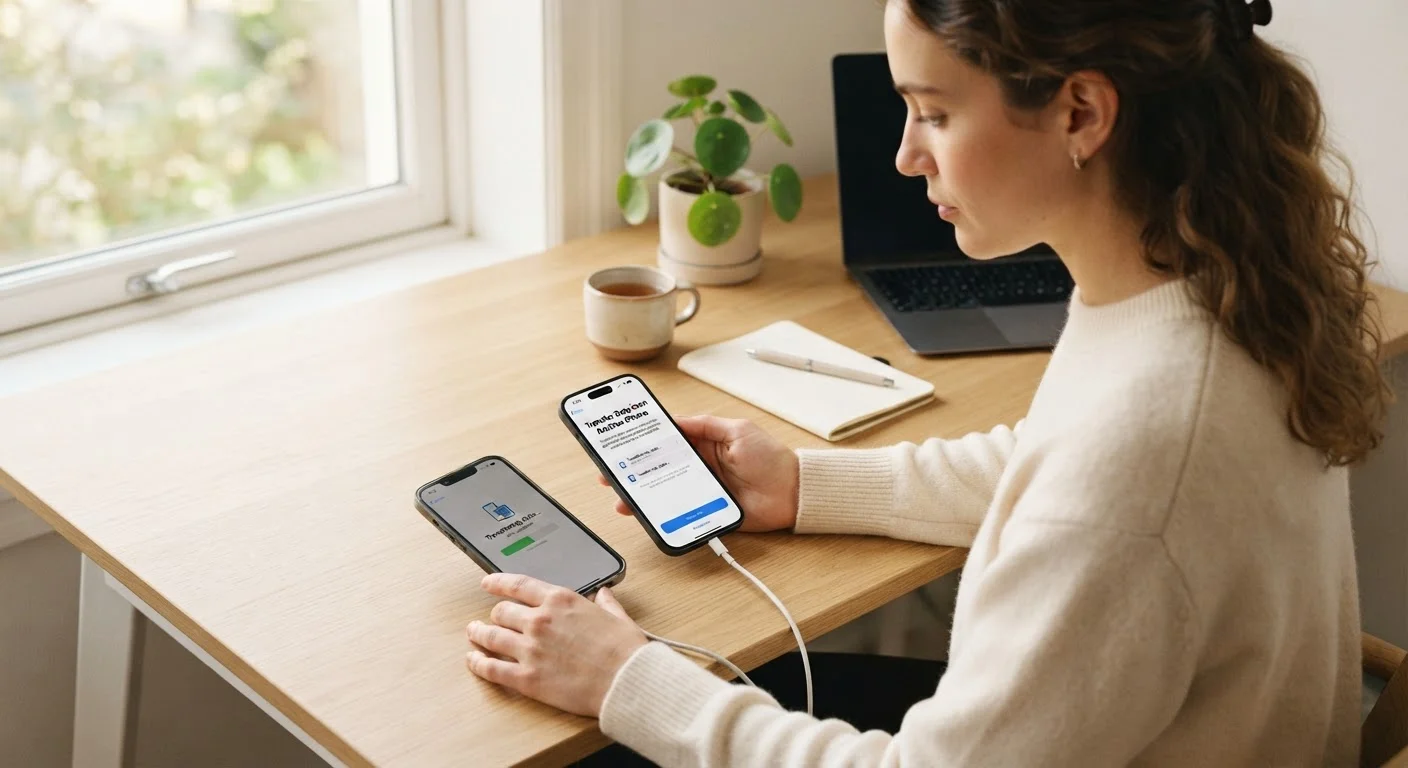
Why Phone Transfers Go Wrong
Switching to a new phone feels straightforward until something is missing. Most data loss during a phone transfer happens for one of three reasons: the backup was never completed before setup began, certain data types weren't covered by the backup method chosen, or accounts weren't properly signed out — causing sync conflicts or activation lock issues on the old device.
Understanding which types of data travel automatically and which require manual steps is the key to a clean transfer. Contacts, calendars, and email sync via your Apple ID or Google account and generally move without issue. Photos require cloud photo backup to be enabled ahead of time. App data varies by app — some sync to the cloud, others store everything locally on the device and won't survive a switch unless you use a dedicated migration tool.
If you're also thinking about how your new device fits into a broader home setup, our guide to common smart home setup mistakes covers pitfalls worth knowing about as you add new devices to your network. And if you're new to consumer electronics generally, this first-timer's orientation explains how modern devices connect and update.
Back Up First — No Exceptions
Every step in this guide assumes you have a verified, complete backup of your old phone before you begin. If the new device setup fails, your network drops mid-restore, or you accidentally trigger a factory reset, a fresh backup is your only safety net. Do not proceed past Step 1 until you have confirmed the backup completed successfully — not just that it started.
Step-by-Step: Transferring Your Phone Without Data Loss
Follow these steps in order. Each builds on the previous one — starting in the middle is the most reliable way to end up with missing data or a locked account.
What you will need
iCloud or Google One (cloud storage)
Stores a full backup of your contacts, app data, and settings for wireless restoration on the new device.
Manufacturer transfer app (e.g., Move to iOS, Samsung Smart Switch)
Moves data directly between phones over Wi-Fi or a USB cable, often faster than a cloud restore.
Computer with USB cable
Enables a local encrypted backup via iTunes or Finder (iPhone) or Google's backup tool (Android), useful if cloud storage is limited.
Password manager app
Ensures all saved passwords are accessible on the new device immediately after signing in.
Check your available cloud storage and free up space if needed
Before anything else, open your cloud settings and confirm you have enough space for a full backup. On iPhone, go to Settings > [your name] > iCloud > Manage Storage. On Android, open Settings > Google > Backup to see your estimated backup size. If you're over your free storage limit, either delete old backups or upgrade your storage plan temporarily.
Back up your old phone
On iPhone: Go to Settings > [your name] > iCloud > iCloud Backup and tap Back Up Now. Keep the phone on Wi-Fi and plugged in until it completes. Alternatively, connect to a Mac or PC and back up via Finder or iTunes — enable Encrypt local backup to include passwords and Health data.
On Android: Go to Settings > Google > Backup and tap Back up now. Contacts sync automatically with your Google account, but photos require Google Photos to be turned on separately under Photos > Backup.
Export or note any data that doesn't sync automatically
Some information lives outside your standard backup. Check each of these before proceeding:
- Text messages: iCloud backs up iMessages automatically; Android SMS requires a third-party app like SMS Backup & Restore unless you're using Samsung Smart Switch or a similar tool.
- Authenticator apps: Apps like Google Authenticator need to be manually migrated. Most have a dedicated transfer or export feature — use it before switching phones or you could be locked out of accounts.
- App-specific data: Games with local saves or apps not tied to a cloud account may not carry over. Check each app's settings for an export or sync option.
Set up the new phone and restore from backup
Power on your new phone and follow the initial setup wizard. When prompted, choose Restore from iCloud Backup (iPhone) or Copy apps and data (Android) instead of setting up as new. Sign in with your Apple ID or Google account and select the most recent backup. The restore can take anywhere from a few minutes to over an hour depending on backup size and Wi-Fi speed — keep both phones nearby and connected to power.
If you're switching between platforms (Android to iPhone or vice versa), use a manufacturer migration app. Apple's Move to iOS and Samsung's Smart Switch handle cross-platform transfers more reliably than manual methods.
Verify everything transferred correctly
Before you do anything irreversible to your old phone, spend 15 minutes checking:
- Contacts: call or message a few people to confirm they appear correctly
- Photos: spot-check several albums, including recently taken shots
- Apps: confirm key apps are installed and you can log back in
- Email and calendar: make sure events and messages are loading
- Two-factor authentication: test logging into one or two accounts that use your authenticator app
Sign out of accounts on the old phone and prepare it for retirement
Only after you've confirmed everything is on the new device should you start deactivating the old one. On iPhone, go to Settings > [your name] > Sign Out to remove your Apple ID. On Android, go to Settings > Accounts and remove your Google account. This prevents Find My / Find My Device from flagging the old phone as stolen and clears activation locks that could complicate resale or donation.
For guidance on wiping the device and removing all personal data safely, see our checklist for preparing an old phone for its next life before you hand it off or recycle it.
Keep Both Phones Active for a Day or Two
After completing the transfer, resist the urge to immediately wipe your old phone. Keep it around for 24–48 hours while you use the new one. You may discover a saved password, a local game save, or an app setting you forgot to move over. Once you're confident the new phone has everything, then move forward with the reset.
Authenticator Apps Require Special Handling
If you use a two-factor authentication (2FA) app such as Google Authenticator, Authy, or Microsoft Authenticator, do not assume it will transfer with the rest of your data. Each app has its own migration process — typically an in-app export or QR-code transfer. Skipping this step can lock you out of banking, email, and other sensitive accounts. Handle authenticator migration before you start setting up the new phone.
Once your new phone is fully set up and verified, take a few minutes to review your privacy settings. Our walkthrough of meaningful privacy controls explains which settings are worth adjusting on a new device. It's also worth understanding what happens to your data when you delete an app — especially if you're cleaning house on the new phone and removing apps you no longer use.