
What You're Actually Dealing With: Device Types and What They Do
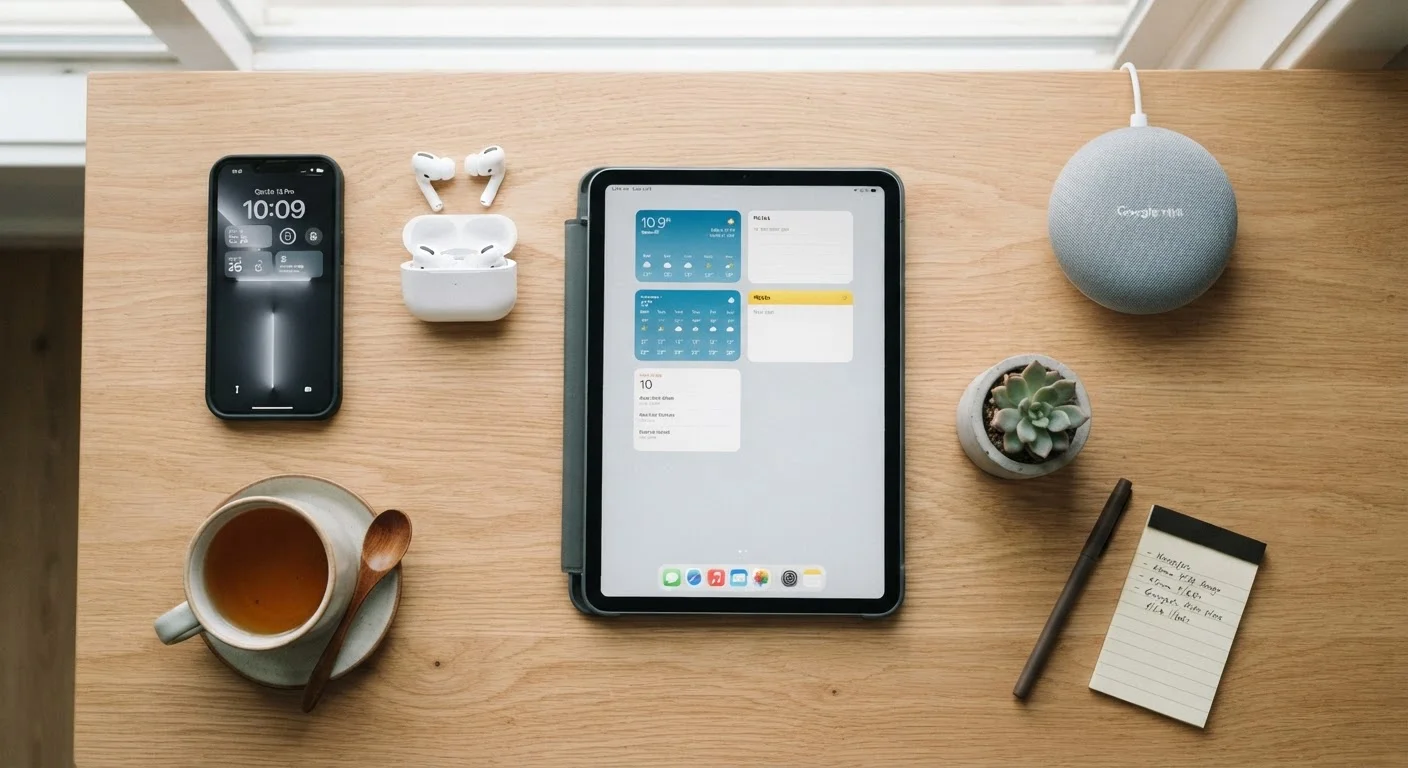
Consumer electronics span a wide range — smartphones, tablets, smart speakers, streaming sticks, wireless earbuds, smart TVs, and more. Each category has a different job. Smartphones are portable communication and computing hubs. Tablets offer larger screens for reading, video, and light productivity. Smart speakers respond to voice commands and often control other smart home devices. Streaming sticks plug into your TV and deliver internet-based video and audio.
Before worrying about features or settings, it helps to know what a device is designed to do — and what it depends on. Almost every modern consumer device requires three things to work fully: a power source, a wireless connection (usually Wi-Fi), and an account tied to a platform or app store. Understanding this triangle makes setup far less confusing. For a deeper look at how specs and technical terms relate to each device type, see the plain-language gadget specs glossary — it translates the numbers you'll see on any product page.
Wi-Fi
A wireless connection between your device and a home router that provides access to the internet.
Bluetooth
A short-range wireless technology that links devices directly to each other — like earbuds to a phone — without needing the internet.
Firmware / Software Update
A file released by a manufacturer that improves or fixes a device's built-in programming. Installing updates keeps devices secure and working well.
Platform Account
A user account tied to a device ecosystem — such as an Apple ID or Google Account — used to access apps, backups, and purchases.
Ecosystem
A family of devices and services from the same company designed to work smoothly together, such as Apple's iPhone, iPad, and Mac lineup.
Matter
A shared smart home standard that allows devices from different brands to communicate and work together more reliably.
The First Hour: Unboxing and Initial Setup Done Right
The steps you take in the first hour with a new device shape how well it serves you long-term. Start by keeping the included documentation — even a small card with model numbers can be useful if you ever need support. Charge the device before extended use if the battery isn't full, though there's no need to condition it with a special first charge.
During setup, use your real email address for account creation rather than a throwaway one. That address is how you recover access if you forget your password. Choose a strong, unique password for each platform account — reusing passwords across services is one of the most common ways accounts get compromised.
Write Down Your Account Info Now
Before you finish setup, jot down the email address and password you used for each platform account — not on your phone, but somewhere physical or in a dedicated password manager. Locked-out accounts are one of the most common tech headaches, and recovery is much harder when you can't remember which email you used to register.
If you're setting up a new smartphone and want to carry over your contacts, photos, and apps from an old one, the process is more involved than it might seem. The step-by-step smartphone transfer guide walks through it clearly so nothing gets lost.
How Devices Connect: Wi-Fi, Bluetooth, and Beyond
Most modern gadgets use one or both of two wireless technologies. Wi-Fi connects your device to your home router, giving it access to the internet. Bluetooth connects devices directly to each other over short distances — think earbuds to a phone, or a wireless keyboard to a tablet — without needing the internet at all.
A few practical points worth knowing: many smart home devices — such as smart plugs or older thermostats — only work on a 2.4 GHz Wi-Fi band, not the faster 5 GHz band. If your router broadcasts both, check which band your new device needs before connecting. Bluetooth connections, called pairings, usually require you to put one device into pairing mode and then select it from the other device's settings. Once paired, most devices reconnect automatically.
For a broader view of how different devices and platforms interact in a home setup, the Home Tech Setup hub covers Wi-Fi, smart home basics, and home entertainment in one place.
Updates, Accounts, and the Basics of Staying Secure
Software updates aren't optional housekeeping — they patch security vulnerabilities that manufacturers discover after a device ships. Many devices leave the factory with months-old software, so checking for updates early matters. Go to Settings → Software Update (the exact label varies by brand) shortly after setup and install anything available.
Platform accounts — your Apple ID, Google Account, or Amazon account — also control backups. Enabling automatic backup from day one means your data (contacts, photos, app preferences) can be restored if a device is lost or replaced. Most platforms back up to cloud storage automatically when a device is connected to Wi-Fi and charging.
Don't Skip Two-Factor Authentication
Most platform accounts offer two-factor authentication (2FA), which requires a second verification step — like a text code — when signing in from a new device. Enabling it dramatically reduces the risk of unauthorized account access. Look for it under Security settings during or after setup, and turn it on before you store sensitive data on the device.
For a fuller picture of digital habits that protect you online, including how apps and services use your data, see digital literacy concepts every online adult should understand. It pairs well with the security basics above.
Getting Devices to Work Together
One of the most rewarding — and occasionally frustrating — parts of owning multiple gadgets is getting them to cooperate. Devices within the same ecosystem (all Apple, all Google, all Amazon) are designed to work together with minimal friction. Mixing brands is possible but takes more planning.
Common integration scenarios include: connecting a smart speaker to a streaming TV, linking a phone to a smart home hub, or casting audio to wireless speakers. Standards like Matter (a newer smart home protocol backed by major manufacturers) are making cross-brand compatibility more reliable, but not every device supports it yet.
If you're running into compatibility walls between gadgets from different brands, practical strategies for bridging incompatible smart home devices covers real-world workarounds. And if you want to avoid the most common setup mistakes before they happen, the first-time smart home setup mistakes guide is a useful companion. Once your devices are humming along, keeping gadgets running longer will help you protect that investment over time.