
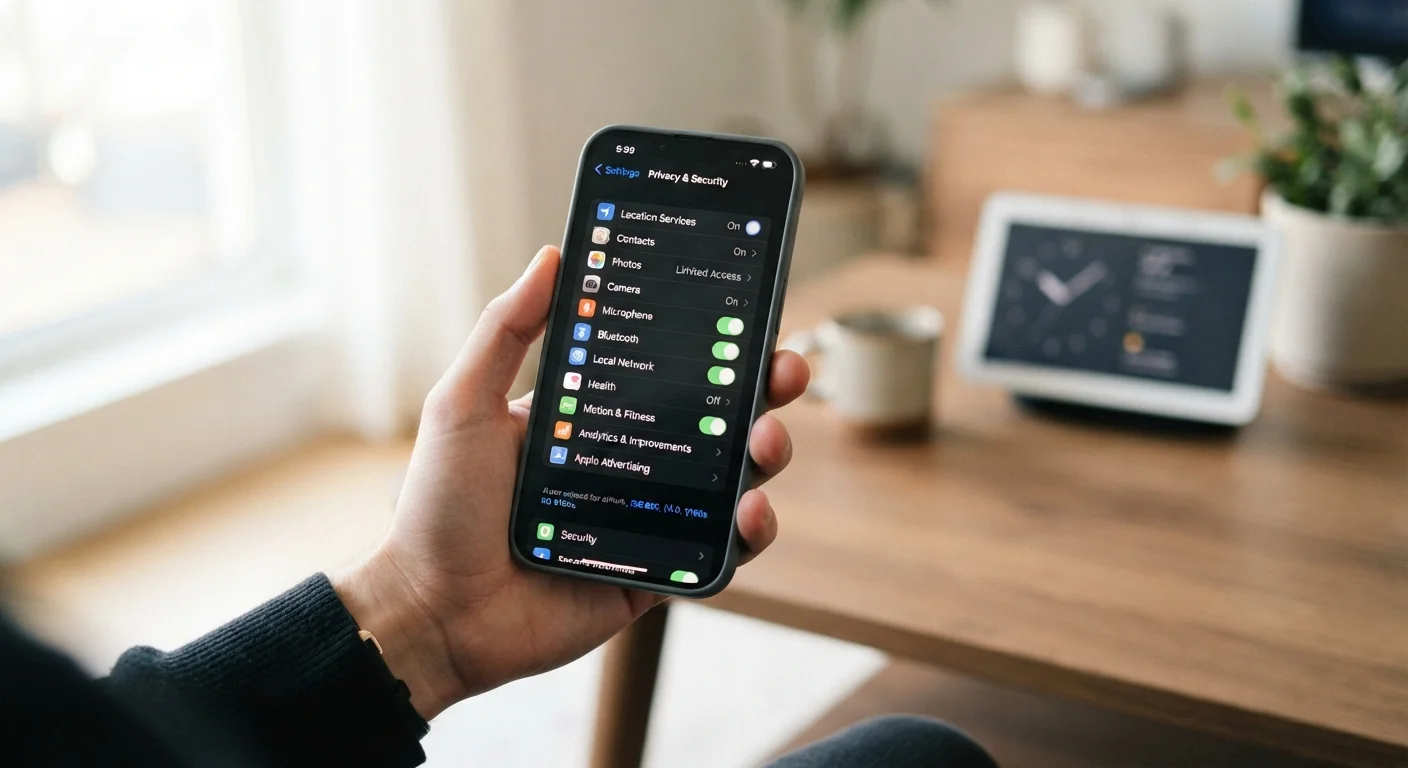
Why default settings aren't designed with your privacy in mind
Device manufacturers and app developers set defaults that serve their business models — and those models typically involve collecting data. That doesn't make every default malicious, but it does mean the out-of-the-box configuration of your phone, smart TV, or connected speaker is rarely the most privacy-protective one available. The good news: adjusting these settings doesn't require technical expertise or sacrifice of meaningful functionality. The seven controls below are among the most impactful changes you can make, explained in plain terms.
Settings menus vary by manufacturer
The exact names and locations of privacy settings differ across device brands, operating system versions, and regional configurations. If you can't find a specific setting by the name listed here, try searching within your device's Settings app using keywords like "privacy," "tracking," or "ads." Manufacturer support pages are also a reliable reference for your specific model.
Privacy settings worth your time
Turn off ad personalization on your phone
Both Android and iOS include a setting that limits how advertisers track your behavior across apps. On iPhone, go to Settings > Privacy & Security > Tracking and disable "Allow Apps to Request to Track." On Android, look for Privacy > Ads and opt out of ads personalization. This doesn't eliminate ads, but it stops your device from building a detailed behavioral profile to target them. The setting is buried, but the effect is immediate.
Disabling ad tracking doesn't remove ads — it just makes them less targeted and your data less valuable to third parties.
Audit location access by app
Location data is among the most sensitive information your phone collects. Many apps request "always on" location access when they only need it while you're actively using them — or not at all. On iPhone, navigate to Settings > Privacy & Security > Location Services. On Android, go to Settings > Location > App permissions. Look for any app set to "Always" and ask whether that level of access is genuinely necessary. A navigation app needs location while open; a recipe app almost certainly does not. For a deeper look at what else apps may be requesting, see our guide on app permissions and what your phone shares.
Switch most apps from 'Always' to 'While Using' location access — you'll notice no difference in day-to-day use.
Review microphone and camera access
Microphone and camera permissions deserve the same scrutiny as location. On both major platforms, you can see a full list of apps with access to these sensors and revoke it on a per-app basis. If a flashlight or calculator app has microphone access, that's a red flag worth acting on. Additionally, on newer iPhones and many Android devices, an indicator light or dot appears when the mic or camera is actively in use — pay attention to it. Removing unnecessary access from apps you rarely use is a low-effort, high-value step.
Any app with microphone access you didn't intentionally grant is worth revoking immediately.
Delete your smart speaker's voice history
Smart speakers record short audio clips when they detect a wake word — and sometimes when they don't. These recordings are stored on company servers and used to improve voice recognition, but they also accumulate over time. Most platforms provide a way to review and delete this history. Look for voice or activity history in the companion app for your device. You can typically set automatic deletion on a rolling 3- or 18-month schedule rather than manually clearing it. To understand how different smart home devices collect and use data, our honest breakdown of smart home device trade-offs covers the topic in more depth.
Setting automatic deletion for voice recordings means you stay protected without needing to remember to clear them manually.
Disable ACR on your smart TV
Automatic Content Recognition (ACR) is a technology built into most smart TVs that identifies what you're watching — even through a cable box or game console — and sends that data back to the manufacturer and advertising partners. It's typically enabled by default and opted into during setup. The setting is usually called something like "Samba Interactive TV," "Viewing Data," or "LivePlus" depending on the platform. Navigate to your TV's privacy or settings menu and search for these terms. Turning ACR off doesn't affect picture quality or streaming app access — it simply stops passive content monitoring.
ACR tracks what you watch regardless of the input source — it runs in the background whether you're streaming or watching cable.
Limit data sharing in your connected accounts
Your device privacy is only as strong as the accounts connected to it. Review which third-party apps have access to your Google, Apple, or Amazon account — these connections often persist long after you've stopped using an app. On Google, visit myaccount.google.com > Security > Third-party apps with account access. On Apple, go to Settings > [your name] > Password & Security > Apps Using Apple ID. Revoke access for anything you don't recognize or no longer use. For a structured approach to this kind of review, see our account security checkup guide.
Dormant app connections to your main account are an often-overlooked but easy-to-close privacy gap.
Check sharing settings before passing on an old device
When selling, donating, or recycling an old phone, tablet, or smart speaker, a factory reset alone isn't always sufficient. Smart speakers need to be deregistered from your account — not just reset — before being handed off. Phones should have encryption confirmed and accounts signed out before the reset is performed. Skipping these steps can leave personal data recoverable by the next owner. Our checklist for preparing an old device walks through the full process step by step.
Deregistering a device from your account is a separate step from the factory reset — both matter.
Make privacy review a yearly habit
Apps update their permissions requests and platforms change their defaults, so a setting you reviewed last year may have changed. Scheduling a brief annual check — maybe when you set up a new device or after a major OS update — keeps you ahead of these shifts without requiring constant vigilance.
Small adjustments, meaningful results
None of these changes require disabling features you rely on. The goal isn't to lock down every data flow — it's to make deliberate choices about what's shared and with whom. If you share devices with others in your household, pairing these steps with account separation practices is worth doing; our guide on keeping accounts secure on shared devices covers that scenario directly. For anyone setting up a new phone, it's also worth working through these settings before downloading apps, rather than after — see our new smartphone setup walkthrough for a structured approach.