
Why Preparation Matters More Than You Think
Handing off an old phone or laptop feels simple — box it up, drop it off, done. But skipping a few key steps can leave your personal photos, saved passwords, payment methods, and email accounts accessible to the next person who picks it up. In some cases, a device that wasn't properly signed out can even be locked to your account, making it unusable for whoever receives it next.
This checklist walks you through every meaningful step before a device leaves your hands, whether it's headed to a recycling bin, a donation center, or a friend. If you've ever wondered what happens to your digital footprint after you part with a device, our guide on what actually happens to your data is a useful companion read.
Account Removal Protects the Next User Too
Leaving your account linked to a donated or recycled device doesn't just risk your own data — it can render the device unusable for whoever receives it next. Activation Lock on Apple devices and Factory Reset Protection on Android devices are designed to prevent theft, but they'll also block a legitimate recipient. Complete account sign-out before any reset to avoid this.
The steps below apply broadly to smartphones, tablets, and laptops. Exact menu names and navigation paths vary by operating system version and manufacturer — consult your device's support documentation when in doubt.
Tools and Accounts You'll Need Ready
Before you start wiping anything, gather what you'll need. Going in blind can leave you locked out of your own backup or unable to complete a factory reset.
Cloud backup service
Used to back up photos, contacts, and files before wiping the device.
External hard drive or USB drive
Provides a local backup option for large files or data you want to keep offline.
Your platform account credentials
You'll need your Apple ID, Google Account, or Microsoft Account login to sign out and remove the device.
Authenticator app backup codes
Needed to transfer or disable 2FA before the device is wiped, preventing lockout.
Device manufacturer's support page
Provides model-specific instructions for factory reset and account removal steps.
The Full Preparation Checklist
Work through these groups in order. Skipping ahead — especially to the factory reset — before completing earlier steps can complicate recovery or leave accounts tied to the device.
Back Up Your Data
Sign Out of Accounts and Services
Unpair and Unlink Connected Devices
Perform a Factory Reset
Physical and Practical Checks
Don't Reset Before Signing Out
On iPhones and iPads, performing a factory reset without first signing out of your Apple ID can leave Activation Lock enabled. This ties the device to your account and makes it impossible for the next user to set it up — even after a full reset. Always sign out of Apple ID first under Settings > [Your Name] > Sign Out.
After the Wipe: Choosing Between Donation and Recycling
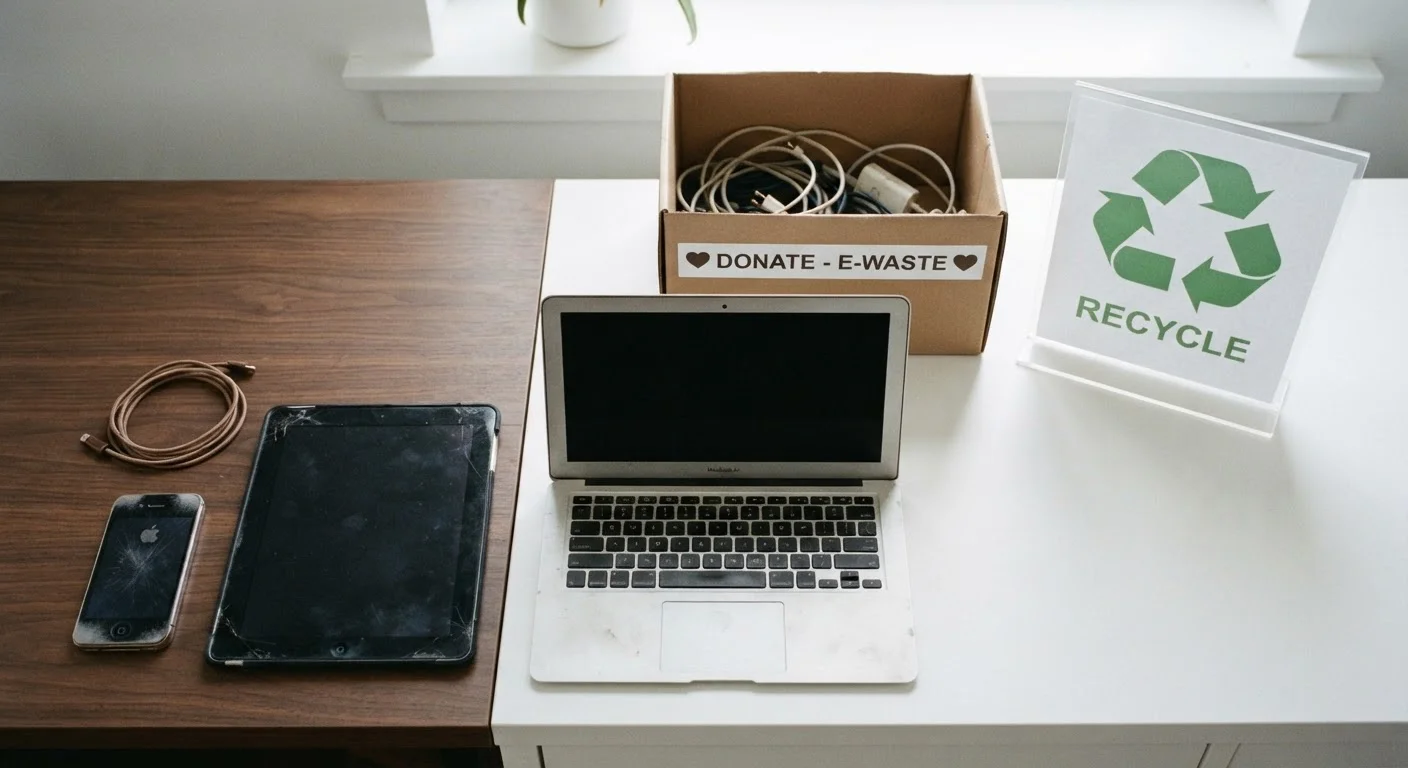
Once the device is clean, decide where it goes. A device in decent working condition — responsive screen, functioning battery, no major hardware damage — is generally a better candidate for donation than recycling. Many local nonprofits, schools, and community centers accept working electronics and refurbish them for people who need them.
If the device no longer powers on reliably, has significant physical damage, or is too outdated to run current software, recycling is the more responsible path. Many electronics retailers and municipal programs offer certified e-waste recycling that keeps hazardous materials out of landfills. Check your local municipality's website or a certified e-waste program for drop-off locations near you.
For broader strategies on getting more life out of the devices you keep, see our practical device maintenance playbook. And if you want to lock down the privacy settings on any devices you're keeping, our guide to privacy settings worth adjusting covers the most meaningful controls in plain English.