
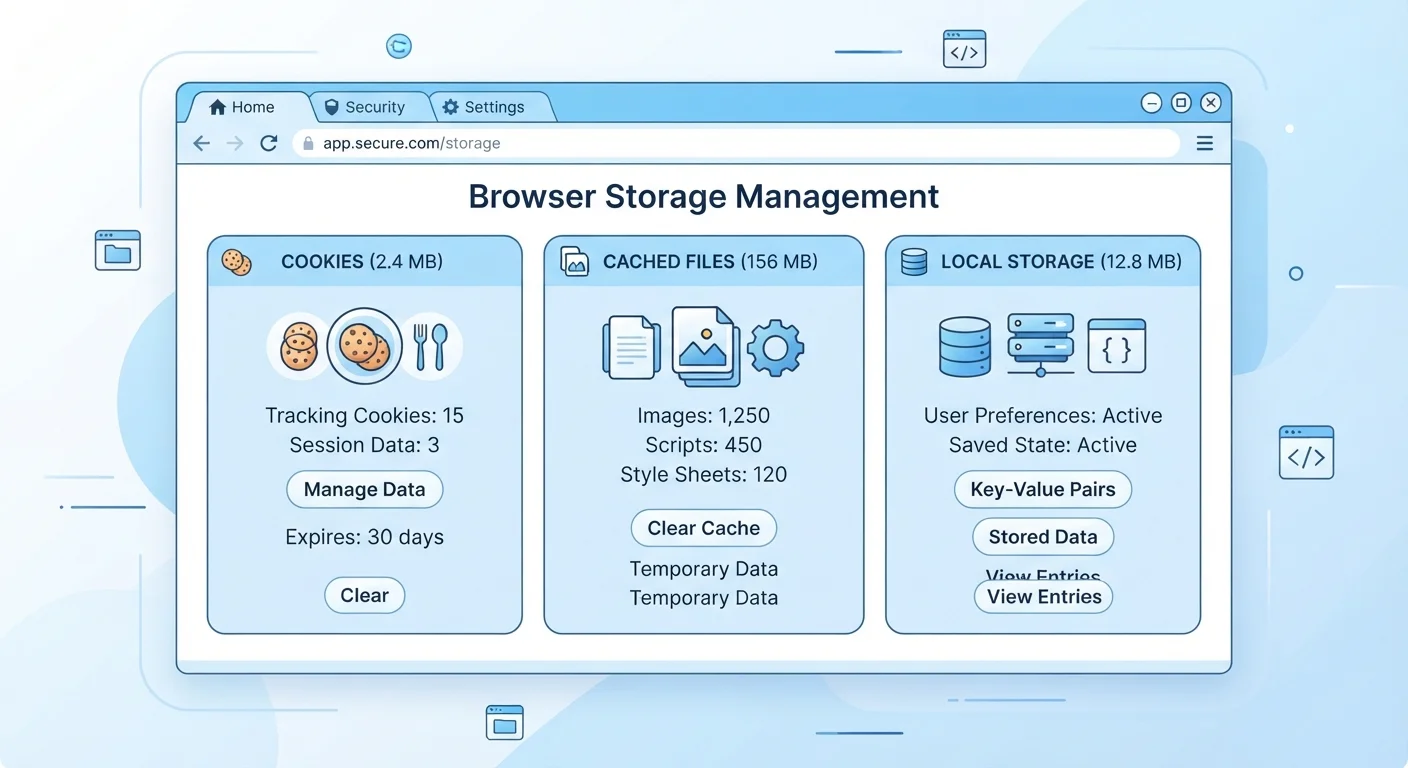
Three Different Things Living in the Same Place
When people talk about clearing their browser data, they often treat cookies, cache, and local storage as one big pile. In reality, these are three separate systems built for entirely different jobs. Lumping them together leads to confusion — especially when you're trying to fix a website problem or tighten up your privacy settings.
Think of your browser as a filing cabinet with three labeled drawers. Each drawer stores a different kind of document, follows different rules about how long it keeps things, and serves a different purpose for the websites you visit. Opening or emptying one drawer has no effect on the others.
"Browser Data" Means Different Things in Different Menus
When your browser offers a "Clear Browsing Data" dialog, it typically lists cookies, cached images and files, and site data (which includes local storage and IndexedDB) as separate checkboxes. Selecting all of them clears everything; selecting just one targets only that category. Reading the checkboxes carefully before clicking confirm helps you avoid accidentally logging out of sites when you only intended to fix a display issue.
Cookies: The Sticky Notes of the Web
A cookie is a small text file that a website places on your device to remember information about you or your session. When you log into a site and come back the next day without being asked to sign in again, that's a cookie at work — it's holding a session token that tells the site you're already authenticated.
Cookies also carry your preferences (like a selected language or region) and, in many cases, tracking data used by advertisers. There are two main varieties:
- First-party cookies are set by the website you're actually visiting. These generally stay on that site and handle things like keeping you logged in.
- Third-party cookies are set by external services embedded in a page — ad networks, analytics providers, and social sharing buttons. These can follow your activity across multiple sites, which is why they've become a significant privacy concern.
Cookies have a size limit (typically 4KB each) and an expiration date. Session cookies disappear when you close your browser tab. Persistent cookies stick around for days, months, or even years, depending on how the site configured them.
4 KB
Maximum size of a single browser cookie
This long-standing limit is defined in the HTTP specification and applies across all major browsers.
5–10 MB
Typical local storage limit per website origin
Most browsers allocate between 5 and 10 megabytes of local storage per domain, compared to just 4KB for a single cookie.
~72%
Websites using third-party tracking cookies
According to data from web transparency research, the majority of major websites have embedded third-party tracking scripts that set cookies.
Cache: Your Browser's Speed Shortcut
The browser cache is a local collection of saved web assets — images, stylesheets, JavaScript files, fonts — that your browser downloads when you visit a site for the first time. On your next visit, instead of re-downloading all of those files from the server, the browser loads them from the cache. This is why revisiting a familiar site feels noticeably faster than hitting it cold.
Cache files can occupy significantly more disk space than cookies — sometimes hundreds of megabytes if you browse heavily. They also have nothing to do with tracking or logins; they're purely a performance mechanism.
This is also why tech support commonly tells you to "clear your cache" when a website looks broken. If a site updated its layout or fixed a bug, your browser might still be rendering an old cached version. Forcing a fresh download resolves the mismatch.
Local Storage: Persistent App-Like Memory
Local storage is a newer, more capable form of browser storage that lets websites save larger amounts of structured data directly on your device — without sending it back to a server. It was introduced as part of the HTML5 web standards and is now widely used for building app-like experiences in the browser.
Common uses include saving your progress in a web-based game, remembering which items are in your shopping cart before you log in, or preserving your settings in an online document editor. Unlike cookies, local storage data doesn't expire on its own and isn't sent to the server with every request — it just sits on your device until you or the website clears it.
Local storage is sandboxed by the browser's same-origin policy: only the website that created the data can access it. A website at one domain cannot read local storage set by a completely different domain. This boundary provides a meaningful layer of privacy protection.
For readers curious about how the full browser experience differs from a native mobile app, see our guide on native apps vs. mobile websites for a deeper look at what's happening under the hood.
Check Site-Specific Storage in Developer Tools
Most desktop browsers let you inspect exactly what a website has stored on your device. In Chrome or Edge, right-click the page, select "Inspect," and navigate to the Application tab — there you'll see cookies, local storage, and session storage broken out by site. This can be eye-opening for understanding what data a frequently visited site is keeping on your machine.
Practical Implications for Privacy and Troubleshooting
Knowing which storage type does what gives you real control over your browsing experience:
- To log out of all sites and stop session tracking: clear your cookies.
- To fix a broken or outdated-looking page: clear your cache.
- To reset a website's saved preferences or app data: clear local storage (usually found under "Site Data" or "Storage" in browser settings).
Keep in mind that excessive cached files can occasionally contribute to sluggish browser performance — though modern browsers manage this reasonably well. If you've noticed your browser or certain apps consuming unexpected resources, our article on signs an app is draining your battery or data covers related warning signs worth checking.
“Privacy is not something that I'm merely entitled to, it's an absolute prerequisite — and the web's storage mechanisms are one of the first places where that either gets respected or eroded.”
— Marissa Mayer, Former CEO of Yahoo and early Google executive
Most browsers let you manage all three storage types from a single privacy or settings menu. You can clear them individually or together — just know what you're trading off before you do.